Showing posts with label Mobile App. Show all posts

Wednesday, November 14, 2018

Flutter: Installation and setup

Flutter is an open source framework (developed by Google) for building native mobile apps for Android and iOS using DART language. React Native (open source framework for building native mobile app for android and iOS using JS/TS language) is developed by Facebook.

Installation(for Windows):


1. Git
2. Powershell (Installed with Windows)
3. Java JDK
4. Android Studio (with AVD)
5. Visual Studio Code 
5. Flutter

Install the above softwares by clicking the link.

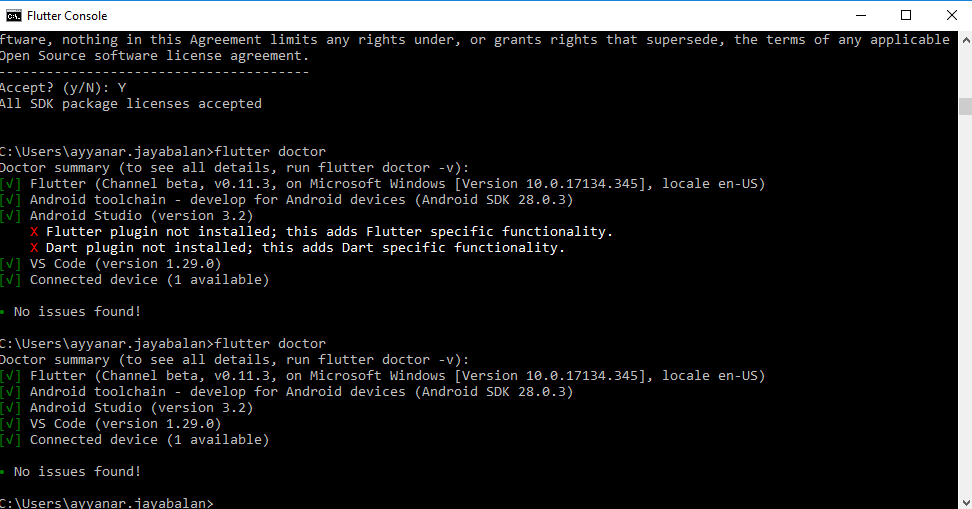
Run the  (flutter_console.bat) under flutter directory and run the below command which tells list of softwares required is been installed or not.

Android Studio Installation Error (Installer integrity check has failed): 
if you receive the error (Installer integrity check has failed) while installing the android studio using exe file, try to download RAR file and install.
Or
open the command prompt, run the exe file with switch like below.

C:\Users\ayyanar.jayabalan\Downloads\android-studio-ide-181.5056338-windows.exe /NCRC


flutter doctor

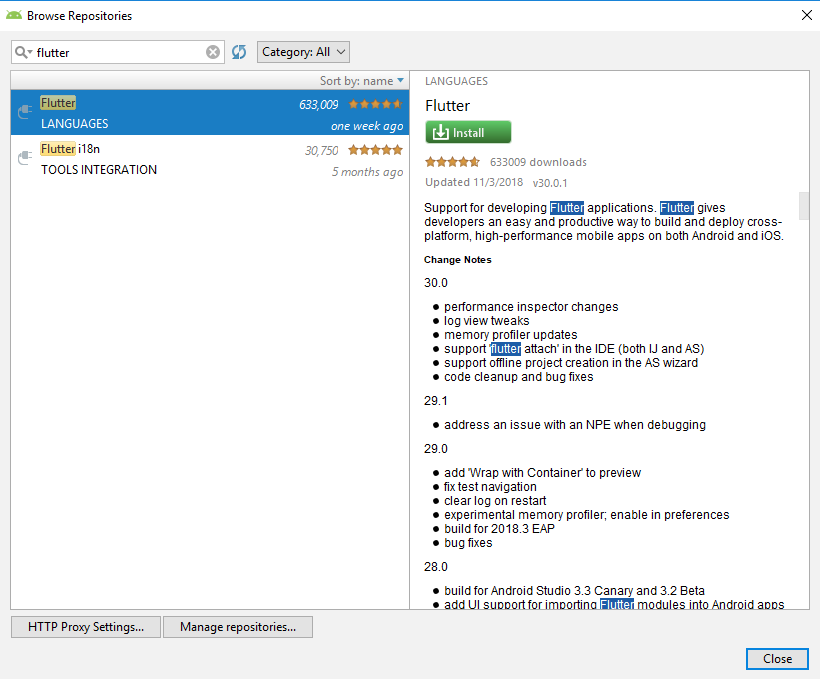
After installing the android studio, install flutter and dart plugin.


flutter doctor


Now you have installed all required softwares to start to work flutter.


Setup:

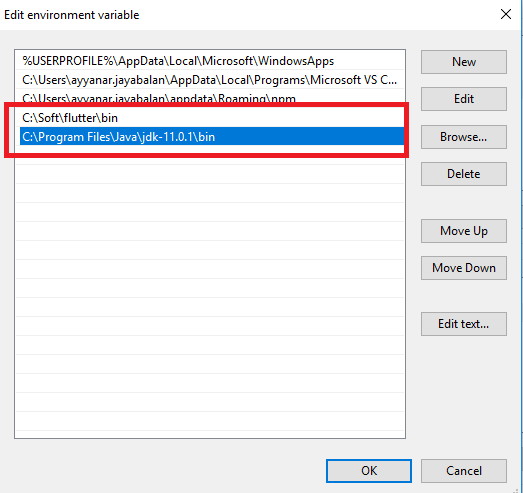
1. Setting up the JDK Path in environment variables.

2. Setting up the Flutter Path in environment variables.


Tuesday, February 19, 2013

Windows Phone 8 - Application Life Cycle

Today, I am going to explain the application life cycle of Windows Phone 8 application. Like ASP.Net Application life cycle, Windows Phone 8 (WP8) also having application life cycle. It's more or else similar to Android Application life cycle.

Application Life Cycle Flow:

Windows Phone 8 Application Life Cycle


I have explained clearly in the above flow chart on WP8 Application Life Cycle. All the application events will occur in App.xaml file.

Not Running / Idle State:
After installing or closing the application, application is in not running state.

Launching Event and Running State:
When the user open the application, application launching event occurs and application reaches to Running State. 

Deactivating Event and Dormant State:
When user receives the phone call/ opened any other application, deactivating event will occur and reaches to Dormant State. In this state, user won't lose any unsaved date (if user entered something in text box, text will be there when the application backs to running state)

Dormant State and Activating Event:
When user the finishes the phone call or close the previously opened application, application activating event will occur from dormant state. In this case, user can see the entered data.

Tombstone State and Activating Event:
When user opening the multiple application which reaches the max. limit of 6 and opening the 7th application,  1st opened application will move to tombstone state which release all the memory used by 1st application and lose unsaved data. 
When user pressing back key continuously 6 times when they are in 7th application, application activating event  of 1st application will occur and move to Running state from tombstone state.

Closing Event and Not Running State:
When user closes the application, closing event will occur and application moves to Not running state.

As a best practice, user has to save the data while application deactivating event occurs itself if they don't want to lose any data. And also, if user wants to load application wide data, it should be done in Application Launch event.

Saturday, February 16, 2013

Window Phone 8 App - Navigation

Today, I am going to explain how to do the navigation between pages and passing data between pages in Windows Phone 8 App. Before getting into application, please install following software's.

1. Visual Studio 2012
2. Windows Phone 8 SDK

Once you have installed the above software's, create the new project of Windows Phone 8 App from the project templates.

Navigation:
         To navigate from one page to another page(XAML), you have to use navigation service. See below code to navigate to Page1.xaml. If your file located in relative path, use Urikind as Relative.

     private void HyperlinkButton_Click_1(object sender, RoutedEventArgs e)  
     {  
       NavigationService.Navigate(new Uri("/Page1.xaml", UriKind.Relative));  
     }  


Go Back:

     To navigate to previous page, you have to use GoBack() method in navigation service.


     private void HyperlinkButton_Click_1(object sender, RoutedEventArgs e)  
     {  
       NavigationService.GoBack();  
     }  


Passing Data between Pages:
         To pass data between pages either you can use QueryString method or Application class. Here I am explaining QueryString method.

Source (Passing as QueryString):
      

     private void Button_Click_1(object sender, RoutedEventArgs e)  
     {  
       NavigationService.Navigate(new Uri("/Page1.xaml?name=" + txtName.Text, UriKind.Relative));  
     }  


Destination (Override the OnNavigatedTo method in PhoneApplicationPage Class):

      protected override void OnNavigatedTo(NavigationEventArgs e)  
     {  
            base.OnNavigatedTo(e);  
        string name = string.Empty;  
        if (NavigationContext.QueryString.TryGetValue("name", out name))  
          txtBox1.Text = name;  
     }  


Screenshots: