Once you have completed the typescript code, it would be automatically converted to Javascript code when you are compiling the project in Visual Studio 2012/2013 or manually converted to Javascript using Typescript compiler (tsc).
Typescript is open source typed language developing by Microsoft for Javascript. It can be compatible for all web browsers because typescript finally converted to Javascript code which will be used in application. You have to refer only compiled Javascript code instead of typescript code in your HTML page.
You can easily create Interface, Class, Module, Typed variable and do Inheritance.
Prerequisite:
1. Visual Studio 2012 or Visual Studio 2013
2. Typescript Plugin
Once you have installed above two, you can start write Typescript (.ts) code. Please follow the below steps.
1. Open Visual Studio 2012/2013
2. Create any web project (MVC, SPA, Web Forms). Here I've created SPA project.
3. Add Typescript(.ts) file to your project.


4. Let's create simple Employee class with some variables and methods. And also, how to call a class method.
class Employee {
firstName: string;
lastName: string;
fullName: string;
age: number;
constructor(first: string, last: string) {
this.firstName = first;
this.lastName = last;
this.fullName = this.firstName + " " + this.lastName;
}
getFullName() { return this.firstName + " " + this.lastName; }
}
var emp = new Employee("Ayyanar", "Jayabalan");
alert(emp.getFullName());
Intellisense:


If you see above code, you can see the typed variable, typed parameter like how we would do in C# code. And also, it supports intellisense.
5. Compile the project which will create Javascript (JS) file and MAP (.map) file automatically. After compiled, you can't see the JS and MAP file in the same directory in Visual Studio. Just click "Show All Files" in project which will show the JS and MAP file in same directory of Typescript(ts) file. You can include those files in your project. MAP file which maps TYPESCRIPT and JAVASCRIPT FILE and it will be useful for debugging TYPESCRIPT code by referring map file in JS file.

6. Open the JS file. You can see equivalent Javascript code in that file.
var Employee = (function () {
function Employee(first, last) {
this.firstName = first;
this.lastName = last;
this.fullName = this.firstName + " " + this.lastName;
}
Employee.prototype.getFullName = function () {
return this.firstName + " " + this.lastName;
};
return Employee;
})();
var emp = new Employee("Ayyanar", "Jayabalan");
alert(emp.getFullName());
//# sourceMappingURL=MyApp.js.map
At the bottom, you are referring the map file to refer TYPESCRIPT file while debugging.
7. You can refer the above JS file in your ASPX/MVC View/HTML Page.
8. Let see how to create a module and have a class inside the module. And also, how to refer the module class in outside.
module EmployeeModule {
export class Employee {
firstName: string;
lastName: string;
fullName: string;
age: number;
constructor(first: string, last: string) {
this.firstName = first;
this.lastName = last;
this.fullName = this.firstName + " " + this.lastName;
}
getFullName() { return this.firstName + " " + this.lastName; }
}
}
var emp = new EmployeeModule.Employee("Ayyanar", "Jayabalan");
alert(emp.getFullName());
9. Let see how to inherit the class.
module EmployeeModule {
export class Employee {
firstName: string;
lastName: string;
fullName: string;
age: number;
constructor(first: string, last: string) {
this.firstName = first;
this.lastName = last;
this.fullName = this.firstName + " " + this.lastName;
}
getFullName() { return this.firstName + " " + this.lastName; }
}
export class Manager extends Employee {
subOrdinates: string[];
}
}
10. You can have question of how to use jquery inside my typescript code. You can't refer jQuery javascript file inside typescript file. Instead you have to create a typescript file for jQuery JS file by following way like how we would add nuget package.
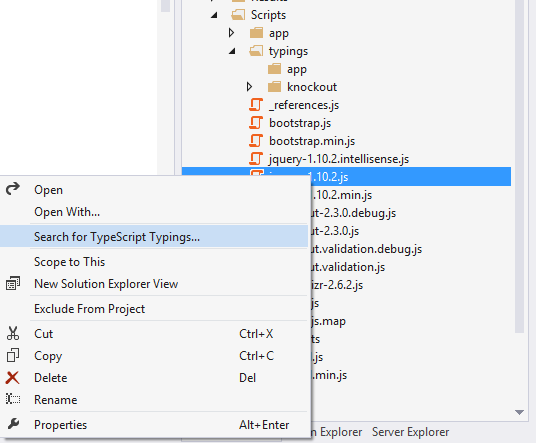

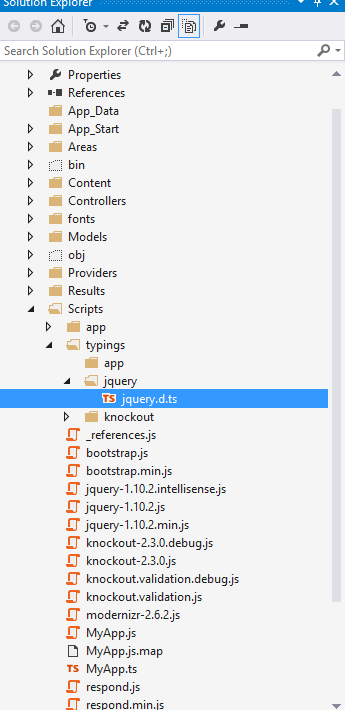

Once you have created typescript file for jQuery, you can refer it in your own TYPESCRIPT file.
Definitely TYPESCRIPT will going to rock in future for Web/Mobile Application Development.
You can get more information about typescript in below URL.
http://www.typescriptlang.org/