For example, in your company, there are two teams to manage the front end and back end. Back end team should able to create obejcts and manage database. Front end team should have only access to read and write the records and not allow to create/alter sql objects. To achieve this, you can do either by create login with permissions or by means of server role. It would be easy for you to manage the login with server role with permission set.
Saturday, November 17, 2012
How to create user defined Server Role to manage permissions easily in SQL Server 2012
Until SQL 2008 R2, you don't have option to create user defined server role. In SQL Server 2012, you can create a server role with permissions. It would help easily to manage the login with limited permissions.
Labels:
SQL Server,
SQL Server 2012
Sunday, November 04, 2012
How to open Google Map with locating address in Android
In this post, I am going to explain how google map with locating address in Android. Just three lines of code is enough to make this happen. Before run the application, make sure that you have selected Google Map API in AVD Manager configuration.
Here is the complete code.
Layout File:
Activity Class:
Manifest File:
Screenshots:
String address = "Jawaharlal Nehru Rd Kasi Estate Jafferkhanpet Chennai Tamil Nadu";
Intent intent = new Intent(Intent.ACTION_VIEW, Uri.parse("geo:0,0?q=" + address));
context.startActivity(intent);
Here is the complete code.
Layout File:
<RelativeLayout xmlns:android="http://schemas.android.com/apk/res/android"
xmlns:tools="http://schemas.android.com/tools"
android:layout_width="match_parent"
android:layout_height="match_parent" >
<Button
android:id="@+id/btnGoogleMap"
android:layout_width="wrap_content"
android:layout_height="wrap_content"
android:layout_centerHorizontal="true"
android:layout_marginTop="30dp"
android:text="Google Map" />
</RelativeLayout>
Activity Class:
import android.net.Uri;
import android.os.Bundle;
import android.app.Activity;
import android.content.Context;
import android.content.Intent;
import android.view.Menu;
import android.view.View;
import android.view.View.OnClickListener;
import android.widget.Button;
public class GoogleMapActivity extends Activity {
final Context context = this;
Button btnGoogleMap;
@Override
public void onCreate(Bundle savedInstanceState) {
super.onCreate(savedInstanceState);
setContentView(R.layout.google_map);
btnGoogleMap.setOnClickListener(new OnClickListener() {
public void onClick(View v) {
String address = "Jawaharlal Nehru Rd Kasi Estate Jafferkhanpet Chennai Tamil Nadu";
Intent intent = new Intent(Intent.ACTION_VIEW, Uri.parse("geo:0,0?q=" + address));
context.startActivity(intent);
}
}
);
}
@Override
public boolean onCreateOptionsMenu(Menu menu) {
getMenuInflater().inflate(R.menu.google_map, menu);
return true;
}
}
Manifest File:
<manifest xmlns:android="http://schemas.android.com/apk/res/android"
package="com.ayyanar.helloworld"
android:versionCode="1"
android:versionName="1.0" >
<uses-sdk
android:minSdkVersion="8"
android:targetSdkVersion="15" />
<uses-permission android:name="android.permission.INTERNET" />
<application
android:icon="@drawable/ic_launcher"
android:label="@string/app_name"
android:theme="@style/AppTheme" >
<activity
android:name=".GoogleMapActivity"
android:label="@string/title_activity_google_map" >
<intent-filter>
<action android:name="android.intent.action.MAIN" />
<category android:name="android.intent.category.LAUNCHER" />
</intent-filter>
</activity>
</application>
</manifest>
Screenshots:
Labels:
Android
How to load web site in native Android application using WebView control
In this post, I am going to explain how to load website in native android web application using webview control. Just three lines of code is enough to make it happen.
Just use the below code to load the website either during oncreate event or button click event.
And also, you have to set INTERNET PERMISSION in manifest file like below.
Here is the complete code to do this.
Layout File:
Activity Class:
Manifest File:
Screenshot:
Just use the below code to load the website either during oncreate event or button click event.
webView = (WebView) findViewById(R.id.webView1);
webView.getSettings().setJavaScriptEnabled(true);
webView.loadUrl("http://ayyanar.blogspot.com");
And also, you have to set INTERNET PERMISSION in manifest file like below.
<uses-permission android:name="android.permission.INTERNET" />
Here is the complete code to do this.
Layout File:
<RelativeLayout xmlns:android="http://schemas.android.com/apk/res/android"
xmlns:tools="http://schemas.android.com/tools"
android:layout_width="match_parent"
android:layout_height="match_parent" >
<TextView
android:id="@+id/textView1"
android:layout_width="wrap_content"
android:layout_height="wrap_content"
android:layout_centerHorizontal="true"
android:layout_centerVertical="true"
android:padding="@dimen/padding_medium"
android:text="@string/hello_world"
tools:context=".WebViewActivity" />
<WebView
android:id="@+id/webView1"
android:layout_width="match_parent"
android:layout_height="match_parent"
android:layout_alignParentBottom="true"
android:layout_alignParentRight="true" />
</RelativeLayout>
Activity Class:
import android.os.Bundle;
import android.app.Activity;
import android.view.Menu;
import android.webkit.WebView;
public class WebViewActivity extends Activity {
WebView webView;
@Override
public void onCreate(Bundle savedInstanceState) {
super.onCreate(savedInstanceState);
setContentView(R.layout.web_view);
webView = (WebView) findViewById(R.id.webView1);
webView.getSettings().setJavaScriptEnabled(true);
webView.loadUrl("http://ayyanar.blogspot.com");
}
@Override
public boolean onCreateOptionsMenu(Menu menu) {
getMenuInflater().inflate(R.menu.web_view, menu);
return true;
}
}
Manifest File:
<manifest xmlns:android="http://schemas.android.com/apk/res/android"
package="com.ayyanar.helloworld"
android:versionCode="1"
android:versionName="1.0" >
<uses-sdk
android:minSdkVersion="8"
android:targetSdkVersion="15" />
<uses-permission android:name="android.permission.INTERNET" />
<application
android:icon="@drawable/ic_launcher"
android:label="@string/app_name"
android:theme="@style/AppTheme" >
<activity
android:name=".WebViewActivity"
android:label="@string/title_activity_web_view" >
<intent-filter>
<action android:name="android.intent.action.MAIN" />
<category android:name="android.intent.category.LAUNCHER" />
</intent-filter>
</activity>
</application>
</manifest>
Screenshot:
Labels:
Android
How to create alert dialog box in Android
In this post, I am going to explain about how to create alert dialog in android application. In dialog box interface, you can set the text for title, Yes & No button. And also, you can define the action for each button events.
Please use the below code to create alert dialog in button click event.
From the above code, you can able to understand on how to set text and event for each button. Everything self descriptive.
Here is the complete code for alert dialog example.
Layout File:
Activity Class:
Manifest file:
Screenshots:
Please use the below code to create alert dialog in button click event.
btnAlertDialog.setOnClickListener(new OnClickListener() {
public void onClick(View v) {
AlertDialog.Builder alertDialogBuilder = new AlertDialog.Builder(context);
// Title of Alert Dialog
alertDialogBuilder.setTitle("Your Title");
// Building alert dialog
alertDialogBuilder
.setMessage("Welcome Ayyanar!.")
.setCancelable(false)
.setPositiveButton("Yes",new DialogInterface.OnClickListener() {
public void onClick(DialogInterface dialog,int id) {
txtAlertText.setText("OK Thanks!");
}
})
.setNegativeButton("No",new DialogInterface.OnClickListener() {
public void onClick(DialogInterface dialog,int id) {
txtAlertText.setText("No Thanks!");
// Close the dialog
dialog.cancel();
}
});
// create alert dialog
AlertDialog alertDialog = alertDialogBuilder.create();
// open dialog
alertDialog.show();
}
}
);
From the above code, you can able to understand on how to set text and event for each button. Everything self descriptive.
Here is the complete code for alert dialog example.
Layout File:
<RelativeLayout xmlns:android="http://schemas.android.com/apk/res/android"
xmlns:tools="http://schemas.android.com/tools"
android:layout_width="match_parent"
android:layout_height="match_parent" >
<TextView
android:id="@+id/txtAlertText"
android:layout_width="wrap_content"
android:layout_height="wrap_content"
android:layout_centerHorizontal="true"
android:layout_centerVertical="true"
android:padding="@dimen/padding_medium"
android:text="[Alert Text]"
tools:context=".AlertDialogActivity" />
<Button
android:id="@+id/btnOpenAlertDialog"
android:layout_width="wrap_content"
android:layout_height="wrap_content"
android:layout_above="@+id/txtAlertText"
android:layout_centerHorizontal="true"
android:layout_marginBottom="56dp"
android:text="Open Alert Dialog" />
</RelativeLayout>
Activity Class:
import android.os.Bundle;
import android.app.Activity;
import android.app.AlertDialog;
import android.content.Context;
import android.content.DialogInterface;
import android.view.Menu;
import android.view.View;
import android.view.View.OnClickListener;
import android.widget.Button;
import android.widget.TextView;
public class AlertDialogActivity extends Activity {
final Context context = this;
Button btnAlertDialog;
TextView txtAlertText;
@Override
public void onCreate(Bundle savedInstanceState) {
super.onCreate(savedInstanceState);
setContentView(R.layout.alert_dialog);
btnAlertDialog = (Button) findViewById(R.id.btnOpenAlertDialog);
txtAlertText = (TextView) findViewById(R.id.txtAlertText);
btnAlertDialog.setOnClickListener(new OnClickListener() {
public void onClick(View v) {
AlertDialog.Builder alertDialogBuilder = new AlertDialog.Builder(context);
// Title of Alert Dialog
alertDialogBuilder.setTitle("Your Title");
// Building alert dialog
alertDialogBuilder
.setMessage("Welcome Ayyanar!.")
.setCancelable(false)
.setPositiveButton("Yes",new DialogInterface.OnClickListener() {
public void onClick(DialogInterface dialog,int id) {
txtAlertText.setText("OK Thanks!");
}
})
.setNegativeButton("No",new DialogInterface.OnClickListener() {
public void onClick(DialogInterface dialog,int id) {
txtAlertText.setText("No Thanks!");
// Close the dialog
dialog.cancel();
}
});
// create alert dialog
AlertDialog alertDialog = alertDialogBuilder.create();
// open dialog
alertDialog.show();
}
}
);
}
@Override
public boolean onCreateOptionsMenu(Menu menu) {
getMenuInflater().inflate(R.menu.alert_dialog, menu);
return true;
}
}
Manifest file:
<manifest xmlns:android="http://schemas.android.com/apk/res/android"
package="com.ayyanar.helloworld"
android:versionCode="1"
android:versionName="1.0" >
<uses-sdk
android:minSdkVersion="8"
android:targetSdkVersion="15" />
<application
android:icon="@drawable/ic_launcher"
android:label="@string/app_name"
android:theme="@style/AppTheme" >
<activity
android:name=".AlertDialogActivity"
android:label="@string/title_activity_alert_dialog" >
<intent-filter>
<action android:name="android.intent.action.MAIN" />
<category android:name="android.intent.category.LAUNCHER" />
</intent-filter>
</activity>
</application>
</manifest>
Screenshots:
Labels:
Android
How to make a phone call in Android
In this post, I am going to discuss about on how to make a phone call in android. Just three line statements is enough to make a call in android application.
Just use the below code in button click event to make a phone call.
And also, you have to set permission in manifest file. Use the below code for phone call permission.
Here is the complete code for making a phone call.
Layout File:
Activity Class:
Android Manifest File:
Screenshots:
Just use the below code in button click event to make a phone call.
Intent callIntent = new Intent(Intent.ACTION_CALL);
callIntent.setData(Uri.parse("tel:+919999999999"));
startActivity(callIntent);
And also, you have to set permission in manifest file. Use the below code for phone call permission.
<uses-permission android:name="android.permission.CALL_PHONE" />
Here is the complete code for making a phone call.
Layout File:
<RelativeLayout xmlns:android="http://schemas.android.com/apk/res/android"
xmlns:tools="http://schemas.android.com/tools"
android:layout_width="match_parent"
android:layout_height="match_parent" >
<Button
android:id="@+id/btnPhoneCall"
android:layout_width="match_parent"
android:layout_height="wrap_content"
android:layout_alignParentLeft="true"
android:layout_centerVertical="true"
android:text="Call +919999999999" />
</RelativeLayout>
Activity Class:
import android.net.Uri;
import android.os.Bundle;
import android.app.Activity;
import android.content.Intent;
import android.view.Menu;
import android.view.View;
import android.view.View.OnClickListener;
import android.widget.Button;
public class PhoneCallActivity extends Activity {
Button btnPhoneCall;
@Override
public void onCreate(Bundle savedInstanceState) {
super.onCreate(savedInstanceState);
setContentView(R.layout.phonecall);
btnPhoneCall = (Button) findViewById(R.id.btnPhoneCall);
btnPhoneCall.setOnClickListener(new OnClickListener() {
public void onClick(View v) {
Intent callIntent = new Intent(Intent.ACTION_CALL);
callIntent.setData(Uri.parse("tel:+919999999999"));
startActivity(callIntent);
}
}
);
}
@Override
public boolean onCreateOptionsMenu(Menu menu) {
getMenuInflater().inflate(R.menu.phonecall, menu);
return true;
}
}
Android Manifest File:
<manifest xmlns:android="http://schemas.android.com/apk/res/android"
package="com.ayyanar.helloworld"
android:versionCode="1"
android:versionName="1.0" >
<uses-sdk
android:minSdkVersion="8"
android:targetSdkVersion="15" />
<uses-permission android:name="android.permission.CALL_PHONE" />
<application
android:icon="@drawable/ic_launcher"
android:label="@string/app_name"
android:theme="@style/AppTheme" >
<activity
android:name=".PhoneCallActivity"
android:label="@string/title_activity_phone_call" >
<intent-filter>
<action android:name="android.intent.action.MAIN" />
<category android:name="android.intent.category.LAUNCHER" />
</intent-filter>
</activity>
</application>
</manifest>
Screenshots:
Labels:
Android
Wednesday, October 31, 2012
How to create simple "Hello World" application in Android 4.0
In this post, I am going to explain how to create simple "Hello World" application in Android. Before start this, i believe you have installed Eclipse and Android properly in your system.
import android.os.Bundle;
import android.app.Activity;
import android.view.Menu;
import android.view.View;
import android.view.View.OnClickListener;
import android.widget.Button;
import android.widget.TextView;
import android.widget.Toast;
public class MainActivity extends Activity {
Button btnHello;
@Override
public void onCreate(Bundle savedInstanceState) {
super.onCreate(savedInstanceState);
setContentView(R.layout.main);
TextView text = (TextView) findViewById(R.id.txtView1);
btnHello = (Button) findViewById(R.id.btnHello);
text.setText("Hello World, Android 4.0");
btnHello.setOnClickListener(new OnClickListener() {
public void onClick(View v) {
Toast.makeText(getApplicationContext(),
"Hello World Ayyanar!",
Toast.LENGTH_LONG).show();
}
}
);
}
@Override
public boolean onCreateOptionsMenu(Menu menu) {
getMenuInflater().inflate(R.menu.main, menu);
return true;
}
}
First, you have to create a Android application project from File -> New -> Android Application Project.
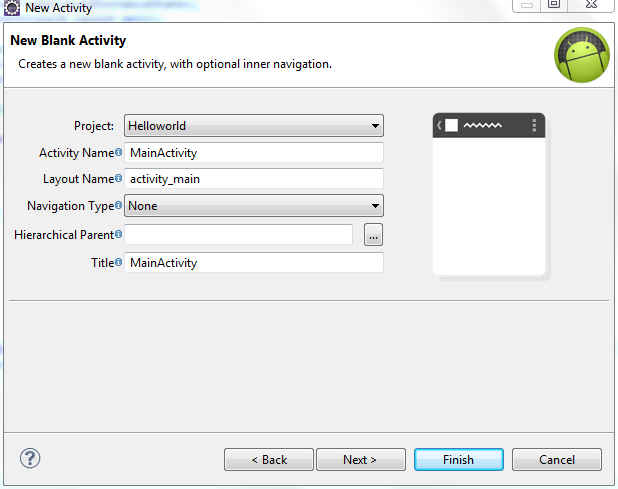
While creating a project itself, you would be asked to specify the activity and layout name like below. Once you given the name, project will be created with one new activity and layout.
Layout -- It's nothing but screen where you can put controls like textview, button, etc.
Activity -- Decides which layout should show.
In Layout file, add TextView control to show the "Hello World, Android 4.0" text while loading activity. add Button to show the "Hello World" toast message like popup.
Layout File (XML):
.csharpcode, .csharpcode pre
{
font-size: small;
color: black;
font-family: Consolas, "Courier New", Courier, Monospace;
background-color: #ffffff;
/*white-space: pre;*/
}
.csharpcode pre { margin: 0em; }
.csharpcode .rem { color: #008000; }
.csharpcode .kwrd { color: #0000ff; }
.csharpcode .str { color: #a31515; }
.csharpcode .op { color: #0000c0; }
.csharpcode .preproc { color: #cc6633; }
.csharpcode .asp { background-color: #ffff00; }
.csharpcode .html { color: #800000; }
.csharpcode .attr { color: #ff0000; }
.csharpcode .alt
{
background-color: #f4f4f4;
width: 100%;
margin: 0em;
}
.csharpcode .lnum { color: #606060; }
<RelativeLayout xmlns:android="http://schemas.android.com/apk/res/android"
xmlns:tools="http://schemas.android.com/tools"
android:layout_width="match_parent"
android:layout_height="match_parent" >
<TextView
android:id="@+id/txtView1"
android:layout_width="wrap_content"
android:layout_height="wrap_content"
android:layout_centerHorizontal="true"
android:layout_centerVertical="true"
android:padding="@dimen/padding_medium"
android:text="@string/hello_world"
tools:context=".MainActivity" />
<Button
android:id="@+id/btnHello"
android:layout_width="wrap_content"
android:layout_height="wrap_content"
android:layout_alignLeft="@+id/txtView1"
android:layout_below="@+id/txtView1"
android:text="@string/button_title_hello" />
</RelativeLayout>
Activity Class:
package com.ayyanar.helloworld;
import android.os.Bundle;
import android.app.Activity;
import android.view.Menu;
import android.view.View;
import android.view.View.OnClickListener;
import android.widget.Button;
import android.widget.TextView;
import android.widget.Toast;
public class MainActivity extends Activity {
Button btnHello;
@Override
public void onCreate(Bundle savedInstanceState) {
super.onCreate(savedInstanceState);
setContentView(R.layout.main);
TextView text = (TextView) findViewById(R.id.txtView1);
btnHello = (Button) findViewById(R.id.btnHello);
text.setText("Hello World, Android 4.0");
btnHello.setOnClickListener(new OnClickListener() {
public void onClick(View v) {
Toast.makeText(getApplicationContext(),
"Hello World Ayyanar!",
Toast.LENGTH_LONG).show();
}
}
);
}
@Override
public boolean onCreateOptionsMenu(Menu menu) {
getMenuInflater().inflate(R.menu.main, menu);
return true;
}
}
if you run the above code (Right click on android project, choose "Run As" --> Android Application). You will see below screen.
Labels:
Android
Tuesday, December 06, 2011
Recovery Models in SQL Server
Here we are going to discuss about database recovery model in SQL Server.
Recovery Models:
1. Simple
2. Bulk Logged
3. Full
Simple Recovery Model:
a)All the operations are not logged in Log file.
b)Log file size won't grow much.
c)Suitable for LOCAL and STAGE Environment.
d)Can't recover the database to certain point in time state.
Bulk Logged Recovery Model:
a)Only minimal information logged in log file during BULK operation. So, its also called as "Minimal Logging"
b)Log File won't grow much during bulk operation.
c)Suitable during bulk operation, migration.
d)Can't recover the bulk operation data.
Full Recovery Model:
a)All the operation logged in log file.
b)Log file size grow rapidly depends upon transactions.
c)Suitable for PRODUCTION environment.
c)Can recover the database to certain point in time (if we followed proper backup plan).
Here is script to switch to different recovery model.
Recovery Models:
1. Simple
2. Bulk Logged
3. Full
Simple Recovery Model:
a)All the operations are not logged in Log file.
b)Log file size won't grow much.
c)Suitable for LOCAL and STAGE Environment.
d)Can't recover the database to certain point in time state.
Bulk Logged Recovery Model:
a)Only minimal information logged in log file during BULK operation. So, its also called as "Minimal Logging"
b)Log File won't grow much during bulk operation.
c)Suitable during bulk operation, migration.
d)Can't recover the bulk operation data.
Full Recovery Model:
a)All the operation logged in log file.
b)Log file size grow rapidly depends upon transactions.
c)Suitable for PRODUCTION environment.
c)Can recover the database to certain point in time (if we followed proper backup plan).
Here is script to switch to different recovery model.
ALTER DATABASE testdb SET RECOVERY SIMPLE
GO
ALTER DATABASE testdb SET RECOVERY BULK_LOGGED
GO
ALTER DATABASE testdb SET RECOVERY FULL
GO
Labels:
SQL Server,
SQL Server 2008,
SQL Server 2012
Thursday, December 01, 2011
Rebuilding and Reorganizing Indexes based on Fragmentation in SQL Server
Why we have to Rebuild and Reorganize the indexes?
As the time passes, data pages are scattered/fragmented and not in order due to insert, update and delete operation. So, its better the rebuild / reorganize the indexes to improve the query performance. Otherwise, query response would be slow because its would take more time to collect the data's which is scattered.
Rebuilding Indexes:
1. Its nothing but dropping and creating the indexes.
2. More CPU resources need.
3. Deadlock would happen while rebuilding the indexes.
Reorganizing Indexes:
1. Rearranging the leaf pages in correct order.
2. Less CPU resources need.
3. Deadlock possibility is very less.
When to use REORGANIZE and REBUILD?
Generally if fragmentation percentage for each index is from 5 - 30 percent, reorganize the index. if fragmentation percentage is more than 30 percent, its better to REBUILD the index.
SQL Script to REORGANIZE and REBUILD each index in each table:
As the time passes, data pages are scattered/fragmented and not in order due to insert, update and delete operation. So, its better the rebuild / reorganize the indexes to improve the query performance. Otherwise, query response would be slow because its would take more time to collect the data's which is scattered.
Rebuilding Indexes:
1. Its nothing but dropping and creating the indexes.
2. More CPU resources need.
3. Deadlock would happen while rebuilding the indexes.
Reorganizing Indexes:
1. Rearranging the leaf pages in correct order.
2. Less CPU resources need.
3. Deadlock possibility is very less.
When to use REORGANIZE and REBUILD?
Generally if fragmentation percentage for each index is from 5 - 30 percent, reorganize the index. if fragmentation percentage is more than 30 percent, its better to REBUILD the index.
SQL Script to REORGANIZE and REBUILD each index in each table:
DECLARE @ReOrgLowPercent INT,
@ReOrgHighPercent INT,
@TableName VARCHAR(200)
SET @ReOrgLowPercent = 5
SET @ReOrgHighPercent = 30
DECLARE @IndexTable TABLE ( AlterStatement VARCHAR(4000) )
DECLARE C CURSOR
FOR SELECT name
FROM sys.tables
OPEN C
FETCH NEXT FROM C INTO @TableName
WHILE ( @@FETCH_STATUS = 0 )
BEGIN
--PRINT @TableName
INSERT INTO @IndexTable ( AlterStatement )
SELECT CASE when avg_fragmentation_in_percent between @ReOrgLowPercent and @ReOrgHighPercent
then 'ALTER INDEX ' + i.name + ' ON ' + t.name
+ ' REORGANIZE;'
when avg_fragmentation_in_percent > @ReOrgHighPercent
then 'ALTER INDEX ' + i.name + ' ON ' + t.name
+ ' REBUILD WITH(ONLINE=ON);' --- enterpise version obly
END
FROM sys.dm_db_index_physical_stats(DB_ID(),
OBJECT_ID(@TableName),
NULL, NULL, NULL) AS a
JOIN sys.indexes AS i ON a.object_id = i.object_id
AND a.index_id = i.index_id
JOIN sys.tables AS t ON t.object_id = i.object_id
FETCH NEXT FROM C INTO @TableName
END
CLOSE C
DEALLOCATE C
SELECT AlterStatement
FROM @IndexTable
WHERE
AlterStatement IS NOT NULL
Labels:
SQL Server,
SQL Server 2008
Friday, November 25, 2011
SQL Server 2012 - Improved Version of EXECUTE keyword
In Previous version of SQL Server 2005/2008, if you execute the SELECT Stored Procedure using EXECUTE keyword, it will return all the records as it is. if you want to edit the column name and data type of result set, you have to modify the stored procedure respectively.
But in SQL Server 2012, improved version of EXECUTE keyword allows to modify the result set with changing the column name and data type without modifying the stored procedure.
To explore this features, execute the following script to create a table, insert the record and creating the stored procedure.
In SQL Server 2005/2008:
RESULT:

In SQL Server 2012:
Here i am changing the column "id" into "CustomerId" and also changing the data type of firstname from VARCHAR(50) to VARCHAR(4). Since i reduced the length of FirstName to 4, it shows truncated firstname value.
RESULT:
But in SQL Server 2012, improved version of EXECUTE keyword allows to modify the result set with changing the column name and data type without modifying the stored procedure.
To explore this features, execute the following script to create a table, insert the record and creating the stored procedure.
CREATE TABLE Customers
(
ID INT IDENTITY(1,1),
FirstName VARCHAR(50),
LastName VARCHAR(50),
DOB DATE
)
GO
INSERT INTO Customers (FirstName, LastName, DOB)
SELECT 'Ayyanar', 'Jayabalan', '08/12/1982'
UNION ALL
SELECT 'Greg', 'Damico', '08/12/1970'
GO
CREATE PROCEDURE Customers_SelectAll
AS
BEGIN
SELECT
ID,
FirstName,
Lastname,
DOB
FROM dbo.Customers
END
GO
In SQL Server 2005/2008:
-- SQL 2005/2008
EXECUTE Customers_SelectAll
RESULT:

In SQL Server 2012:
Here i am changing the column "id" into "CustomerId" and also changing the data type of firstname from VARCHAR(50) to VARCHAR(4). Since i reduced the length of FirstName to 4, it shows truncated firstname value.
-- SQL 2012
EXEC Customers_SelectAll
WITH RESULT SETS
(
(
CustomerID SMALLINT,
FirstName VARCHAR(4),
Lastname VARCHAR(20),
DateOfBirth DATE
)
);
RESULT:
Labels:
SQL Server,
SQL Server 2012
SQL Server 2012 - Throwing Exception using THROW in TRY CATCH BLOCK instead of using RAISERROR
In SQL Server 2005/2008, if you want to throw an error again in catch block of TRY CATCH statement, you have to use RAISERROR with ERROR_MESSAGE(), ERROR_SEVERITY().
In SQL Server 2005/2008:
SQL Server 2012:
Just, you can use THROW keyword to throw the complete error information.
if you execute the above statement, you will receive an error like below.
In SQL Server 2005/2008:
-- EXCEPTION HANDLING in SQL Server 2005/2008
BEGIN TRY
DECLARE @VALUE INT
SET @VALUE = 1 / 0
END TRY
BEGIN CATCH
DECLARE @Message nvarchar(4000), @Severity int
SELECT @Message = ERROR_MESSAGE(), @Severity = ERROR_SEVERITY()
RAISERROR ( @Message, @Severity, 1 )
END CATCH
SQL Server 2012:
Just, you can use THROW keyword to throw the complete error information.
-- EXCEPTION HANDLING using THROW in SQL Server 2012
BEGIN TRY
DECLARE @VALUE INT
SET @VALUE = 1/0
END TRY
BEGIN CATCH
THROW
END CATCH
if you execute the above statement, you will receive an error like below.
Msg 8134, Level 16, State 1, Line 5
Divide by zero error encountered.
Labels:
SQL Server,
SQL Server 2012
Custom Paging in SQL Server 2012 - Using OFFSET
In SQL Server 2005/2008, if you have want to implement the custom paging for ASP.Net GridView or any other controls, you have use either COMMON TABLE EXPRESSIONS with ROW_NUMBER() or just ROW_NUMBER() keyword.
CUSTOM PAGING IN SQL SERVER 2005/2008:
CUSTOM PAGING IN SQL SERVER 2012 using OFFSET:
In SQL Server 2012, by using the OFFSET feature, we can implement the custom paging easily without having too many SQL statements.
Just you have to specify starting row id and page size like below.
Here is the complete T-SQL statement for custom paging.
CUSTOM PAGING IN SQL SERVER 2005/2008:
-- CUSTOM PAGING IN SQL SERVER 2005
USE AdventureWorks
DECLARE @PageIndex SMALLINT, @PageSize SMALLINT, @StartRowId INT, @EndRowId INT
SET @PageIndex = 1
SET @PageSize = 10
SET @StartRowId = ( (@PageIndex - 1) * @PageSize) + 1
SET @EndRowId = (@StartRowId + @PageSize) - 1
SELECT *
FROM (
SELECT ROW_NUMBER() OVER(ORDER BY EmployeeId) AS RowId, *
FROM HumanResources.Employee) AS TT
WHERE RowId >= @StartRowId and RowId <= @EndRowId
CUSTOM PAGING IN SQL SERVER 2012 using OFFSET:
In SQL Server 2012, by using the OFFSET feature, we can implement the custom paging easily without having too many SQL statements.
Just you have to specify starting row id and page size like below.
OFFSET <Offset> ROWS
FETCH NEXT <PageSize> ROWS ONLY;
Here is the complete T-SQL statement for custom paging.
-- CUSTOM PAGING IN SQL SERVER 2012 RC0
DECLARE @PageIndex SMALLINT, @PageSize SMALLINT, @Offset INT
SET @PageIndex = 1
SET @PageSize = 10
SET @Offset = ( (@PageIndex - 1) * @PageSize)
SELECT *
FROM HumanResources.Employee
ORDER BY EmployeeId
OFFSET @Offset ROWS
FETCH NEXT @PageSize ROWS ONLY;
Labels:
SQL Server,
SQL Server 2012
Tuesday, November 22, 2011
SQL Server 2012 Features - Sequence Number
Today,i have installed to explore the features of SQL Server 2012. First feature which i am going to discuss is "Sequence Number". You can generate sequence number like identity column. In Previous release, if you want to generate a sequence id before inserting into the table, you have to create a seperate physical table with identity column. Before inserting record into table, we have to insert a row in custom sequence table and get the latest value.
But in SQL Server 2012, you no need to insert record in any physical custom table to retrieve the number in sequence. Just you have to create sequence object which binds to schema.
Here are the steps to create Sequence object using SQL Server Management Studio.
1. Create a New Sequence:

2. Specify the NAME, MIN, MAX, CYCLE and OTHER PROPERTIES:

3. Once you entered the values for sequence object. You have to use following query to get NEXT sequence number using NEXT VALUE FOR keyword.
RESULT:
If you execute above query, you will get the value as 1. Next time, if you executing same query, you will get the value as 2. Same way, you would get the number in sequential for every execution.
4. With CYCLE OPTION:
if you execute the above query, you would get values like below.
if sequence value reaches maximum value, it will start again with start value if you enabled the CYCLE option. Otherwise, it will throw an error like below;
But in SQL Server 2012, you no need to insert record in any physical custom table to retrieve the number in sequence. Just you have to create sequence object which binds to schema.
Here are the steps to create Sequence object using SQL Server Management Studio.
1. Create a New Sequence:

2. Specify the NAME, MIN, MAX, CYCLE and OTHER PROPERTIES:

3. Once you entered the values for sequence object. You have to use following query to get NEXT sequence number using NEXT VALUE FOR keyword.
select NEXT VALUE FOR dbo.GlobalSequence;
RESULT:
1
If you execute above query, you will get the value as 1. Next time, if you executing same query, you will get the value as 2. Same way, you would get the number in sequential for every execution.
4. With CYCLE OPTION:
select NEXT VALUE FOR dbo.GlobalSequence;
if you execute the above query, you would get values like below.
1
2
3
4
5
1
if sequence value reaches maximum value, it will start again with start value if you enabled the CYCLE option. Otherwise, it will throw an error like below;
The sequence object 'GlobalSequence' has reached its minimum or maximum value. Restart the sequence object to allow new values to be generated.
Labels:
SQL Server,
SQL Server 2012
Tuesday, October 25, 2011
SQL Server 2012 - Testimonials
http://www.microsoft.com/sqlserver/en/us/future-editions.aspx
Labels:
SQL Server 2012
SQL SERVER – SHRINK Log File using SHRINKFILE
if you want to shrink the log file, you would use SHRINKFILE command like.
DBCC SHRINKFILE(TestDBLog, 1)
GO
But in some cases (like production database), if you shrink log file by using above command, you won't get expected result. So, if you want to shrink log file to minimum size, take backup (*.bak) of entire database with SIMPLE recovery mode and then run the shrink file command.
Here is the code to backup the database and shrink the log file
BACKUP DATABASE [TestDb] TO DISK = N'C:\TestDb.bak'
GO
DBCC SHRINKFILE(TestDBLog, 1)
GO
DBCC SHRINKFILE(TestDBLog, 1)
GO
But in some cases (like production database), if you shrink log file by using above command, you won't get expected result. So, if you want to shrink log file to minimum size, take backup (*.bak) of entire database with SIMPLE recovery mode and then run the shrink file command.
Here is the code to backup the database and shrink the log file
BACKUP DATABASE [TestDb] TO DISK = N'C:\TestDb.bak'
GO
DBCC SHRINKFILE(TestDBLog, 1)
GO
Labels:
SQL Server,
SQL Server 2008,
Tips and Tricks
Friday, November 26, 2010
Implementing IF..ELSE.. condition in Selenium IDE using Flow Control Add-On
Here I am going to discuss about on how to implement if else condition in selenium IDE.We can't implement the IF ELSE condition using core selenium IDE. To implement IF ELSE logic, you have to install Firefox "Flow Control" Add On. So, please install the "Flow Control" Add On using below URL.
https://addons.mozilla.org/en-US/firefox/addon/85794/
After installed, restart the firefox browser. Now, Flow Control commands available in the selenium IDE.
Here are the commands:
COMMAND| TARGET |VALUE
======================================================
gotoif| CONDITION |LABELNAME
label | LABELNAME|
gotolabel | LABELNAME
Here is the example that i have used:

From the above screenshot, first i am checking whether text("Please select") present in the page using "storeTextPresent" and assign the result to variable "POPUP_EXISTS". Then i am checking whether result is "false" or not. if the result is "false", then skip the next statement and move the execution to "target1"(label). Otherwise, continue the execution to next statement.
https://addons.mozilla.org/en-US/firefox/addon/85794/
After installed, restart the firefox browser. Now, Flow Control commands available in the selenium IDE.
Here are the commands:
COMMAND| TARGET |VALUE
======================================================
gotoif| CONDITION |LABELNAME
label | LABELNAME|
gotolabel | LABELNAME
Here is the example that i have used:
From the above screenshot, first i am checking whether text("Please select") present in the page using "storeTextPresent" and assign the result to variable "POPUP_EXISTS". Then i am checking whether result is "false" or not. if the result is "false", then skip the next statement and move the execution to "target1"(label). Otherwise, continue the execution to next statement.
Labels:
Automation,
Selenium
Monday, August 30, 2010
Clearing ASP.Net FileUpload Control using jQuery
Here i am going to discuss about on how to clear the file upload control using jQuery. To clear file upload control, you have to place file upload control within the DIV tag like below.
<div id="div_fileupload">
<asp:FileUpload ID="fileUpload" runat="server" onkeypress="return false;" />
</div>
// Clearing text of file upload control by means of replacing with HTML content.
// you can place this code in your JS file.
$.ClearFileUpload = function (fileUploadControlId) {
try {
document.getElementById(fileUploadControlId).innerHTML = document.getElementById(fileUploadControlId).innerHTML;
$(fileUploadControlId).focus();
} catch (e) {
//alert(e.Description);
}
}
function Checkfiles() {
var value = $('#fileUpload').val().toLowerCase();
if (value.length != 0) {
if (/.*\.(gif)|(jpeg)|(jpg)|(png)$/.test(value))
return true;
$.ClearFileUpload('div_fileupload');
alert('Please Upload Gif or Jpg Images, or Png Files Only.');
return false;
}
else {
return true;
}
}
You can call the above function in your ASP.Net Submit button OnClientClick event with checking the file extensions.
HTML CODE:
<div id="div_fileupload">
<asp:FileUpload ID="fileUpload" runat="server" onkeypress="return false;" />
</div>
jQuery Custom Function:
// Clearing text of file upload control by means of replacing with HTML content.
// you can place this code in your JS file.
$.ClearFileUpload = function (fileUploadControlId) {
try {
document.getElementById(fileUploadControlId).innerHTML = document.getElementById(fileUploadControlId).innerHTML;
$(fileUploadControlId).focus();
} catch (e) {
//alert(e.Description);
}
}
Calling jQuery Custom Function from ASP.Net Design View:
function Checkfiles() {
var value = $('#fileUpload').val().toLowerCase();
if (value.length != 0) {
if (/.*\.(gif)|(jpeg)|(jpg)|(png)$/.test(value))
return true;
$.ClearFileUpload('div_fileupload');
alert('Please Upload Gif or Jpg Images, or Png Files Only.');
return false;
}
else {
return true;
}
}
You can call the above function in your ASP.Net Submit button OnClientClick event with checking the file extensions.
Labels:
ASP.Net,
jQuery,
Tips and Tricks
Monday, April 12, 2010
Subscribe to:
Comments (Atom)