Tuesday, October 23, 2018

FIX: ng is not recognized as valid command even after successful npm install

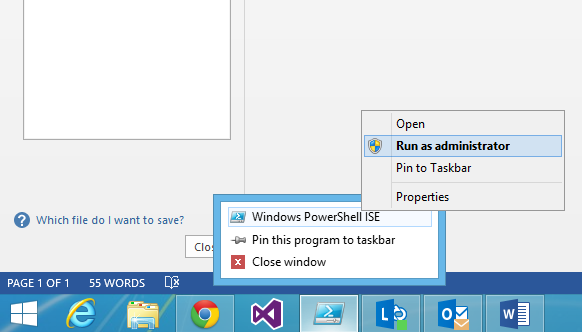
If you're getting the error on executing the ng command, Please make sure that you add below path to your environment variables.

Error:
ng is not recognized as valid command even after successful npm install

Path:
C:\Users\{UserName}\appdata\Roaming\npm



Wednesday, October 07, 2015

Duplicate Visual Studio Code Menu in Context Menu even After Uninstalling the Older Version

If you see any problem of having duplicate Visual Studio Code menu in context menu, please follow below procedure.

1.Take backup of registry by exporting.
2.Delete Ticino folder from registry (HKEY_CLASSES_ROOT\*\shell\Ticino)
3.Close all explorer
4.Now you can see that duplicate menu item removed from Context menu.

Tuesday, April 07, 2015

Install NodeJs and NPM in Windows 8.1

Last week, I have been facing issues of installing NodeJs and NPM msi in Windows 8.1. Today, I can able to successfully install NodeJs MSI by using below techniques.

  1. Download NodeJs (with NPM) MSI file from https://nodejs.org/
  2. Open Powershell/ cmd in Administrator Mode.
  3. Install the NodeJs MSI file from Powershell/ cmd window.
  4. Restart the machine.
  5. Check whether NodeJs and NPM installed or not by using below command.
            node --version
               npm  --version


Wednesday, August 13, 2014

HOW TO FIX: Audio/Sound not working in Chrome Browser

Last few weeks, I had an issue of hearing no sound from CHROME browser. So, I did following steps to fix this.

Step 1:

1. Close Chrome and open it again.
2. Go to Chrome Plugins page (chrome://plugins/)
3. Click "+Details" in right hand side to view the plugin details in detail.
4. You could see of two plugin under Adobe Flash Player. In that, Disable the Pepper Flash.
5. Close the browser and open it again. See audio works. if still not working, follow Step 2.


Step 2:

1. Open Internet Explorer.
2. Go to Tools -> Internet Options.
3. Click Advanced Tab and Click Reset Button
4. In Reset Internet Explorer Settings window, Click Reset Button.
4. Open Chrome browser, See Audio Works.

Tuesday, July 08, 2014

SOLUTION: SQL Server Management Studio 2012 Hangs after Opening Database Objects like Stored Procedure in Query Window

Today, I have started to experience that SQL Server Management Studio 2012 starts hanging after opening the stored procedure in Query Window. Here is the solution to fix this.


1. Close All Instances of SSMS 2012

2. In Run Command, type "%AppData%\Microsoft\SQL Server Management Studio" and it will open a folder like "C:\Users\{User Name}\AppData\Roaming\Microsoft\SQL Server Management Studio".

3. Rename the "11.0" folder to "11.0.Issue"

4. Open SSMS 2012 and new folder "11.0" would be created in the above path.

5. Open database objects like SP and don't see any hanging in SSMS 2012.

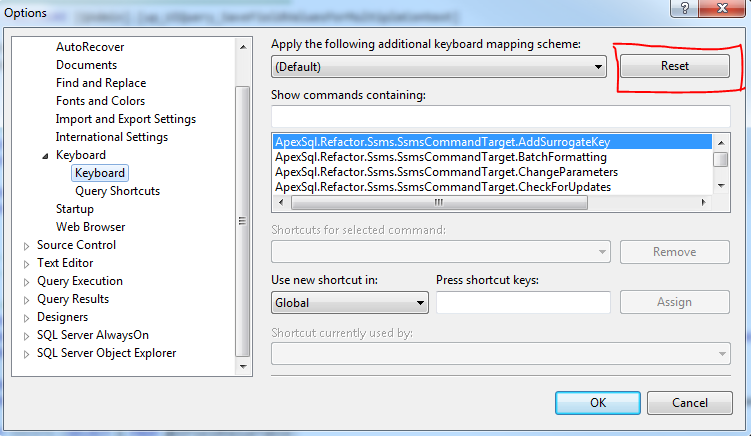
SOLUTION: Keyboard Shortcut not working in SQL Server Management Studio 2012

Today, I have started to experience that keyboard shortcuts not working in SQL Server Management Studio 2012. Here is the solution to fix this.


1. Go to Tools  --> Options
2. Select Environment --> Keyboard
3. In Right hand side, click RESET button.
4. Then, Keyboard shortcut works.


Saturday, December 07, 2013

Easy way to write Javascript code using TypeScript

In this article, I am just going to explain about how to write a Javascript code easily using Typescript. If you are planning to write Single Page Application (SPA), Responsive web application or large scale web application, then you supposed to write more Javascript code to achieve it. Moreover, it is difficult to handle more javascript code with lots of confusion around variable type, whether object is element or not. Typescript will solve those problems by writing the code in structured traditional way like C# or JAVA.
      Once you have completed the typescript code, it would be automatically converted to Javascript code when you are compiling the project in Visual Studio 2012/2013 or manually converted to Javascript using Typescript compiler (tsc).
   Typescript is open source typed language developing by Microsoft for Javascript. It can be compatible for all web browsers because typescript finally converted to Javascript code which will be used in application. You have to refer only compiled Javascript code instead of typescript code in your HTML page.

You can easily create Interface, Class, Module, Typed variable and do Inheritance.

Prerequisite:
1. Visual Studio 2012 or Visual Studio 2013
2. Typescript Plugin 

Once you have installed above two, you can start write Typescript (.ts) code. Please follow the below steps.

1. Open Visual Studio 2012/2013
2. Create any web project (MVC, SPA, Web Forms). Here I've created SPA project.
3. Add Typescript(.ts) file to your project.


4. Let's create simple Employee class with some variables and methods. And also, how to call a class method.

class Employee {
    firstName: string;
    lastName: string;
    fullName: string;
    age: number;
    constructor(first: string, last: string) {
        this.firstName = first;
        this.lastName = last;
        this.fullName = this.firstName + " " + this.lastName;
    }

    getFullName() { return this.firstName + " " + this.lastName; }
}


var emp = new Employee("Ayyanar", "Jayabalan");
alert(emp.getFullName());

Intellisense:


If you see above code, you can see the typed variable, typed parameter like how we would do in C# code. And also, it supports intellisense.

5. Compile the project which will create Javascript (JS) file and MAP (.map) file automatically. After compiled, you can't see the JS and MAP file in the same directory in Visual Studio. Just click "Show All Files" in project which will show the JS and MAP file in same directory of Typescript(ts) file.  You can include those files in your project. MAP file which maps TYPESCRIPT and JAVASCRIPT FILE and it will be useful for debugging TYPESCRIPT code by referring map file in JS file.


6. Open the JS file. You can see equivalent Javascript code in that file.
 
var Employee = (function () {
    function Employee(first, last) {
        this.firstName = first;
        this.lastName = last;
        this.fullName = this.firstName + " " + this.lastName;
    }
    Employee.prototype.getFullName = function () {
        return this.firstName + " " + this.lastName;
    };
    return Employee;
})();

var emp = new Employee("Ayyanar", "Jayabalan");
alert(emp.getFullName());
//# sourceMappingURL=MyApp.js.map

At the bottom, you are referring the map file to refer TYPESCRIPT file while debugging.

 7. You can refer the above JS file in your ASPX/MVC View/HTML Page.

8. Let see how to create a module and have a class inside the module. And also, how to refer the module class in outside.

module EmployeeModule {
    export class Employee {
        firstName: string;
        lastName: string;
        fullName: string;
        age: number;
        constructor(first: string, last: string) {
            this.firstName = first;
            this.lastName = last;
            this.fullName = this.firstName + " " + this.lastName;
        }

        getFullName() { return this.firstName + " " + this.lastName; }
    }
}


var emp = new EmployeeModule.Employee("Ayyanar", "Jayabalan");
alert(emp.getFullName());


9. Let see how to inherit the class.

module EmployeeModule {
    export class Employee {
        firstName: string;
        lastName: string;
        fullName: string;
        age: number;
        constructor(first: string, last: string) {
            this.firstName = first;
            this.lastName = last;
            this.fullName = this.firstName + " " + this.lastName;
        }

        getFullName() { return this.firstName + " " + this.lastName; }
    }

    export class Manager extends Employee {
        subOrdinates: string[];
    }
}


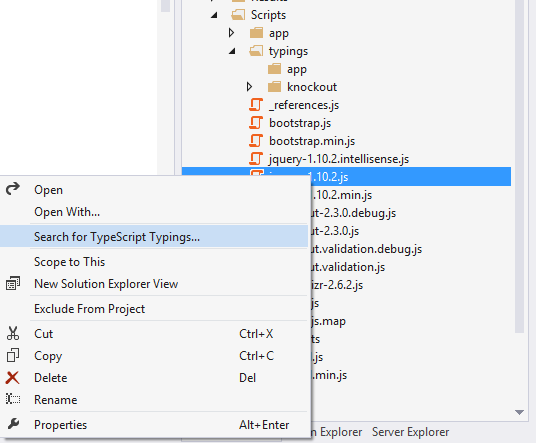
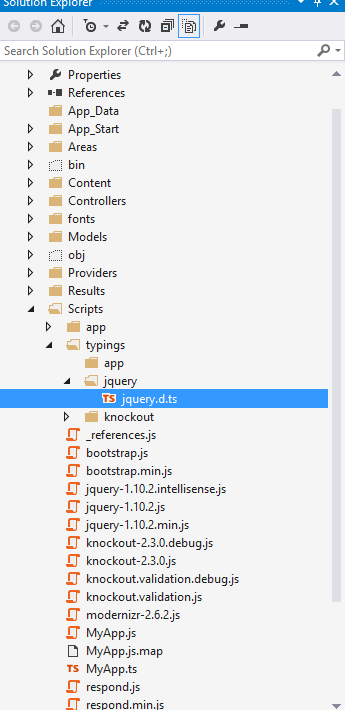
10. You can have question of how to use jquery inside my typescript code. You can't refer jQuery javascript file inside typescript file. Instead you have to create a typescript file for jQuery JS file by following way like how we would add nuget package.


Once you have created typescript file for jQuery, you can refer it in your own TYPESCRIPT file.

Definitely TYPESCRIPT will going to rock in future for Web/Mobile Application Development.


 You can get more information about typescript in below URL.

http://www.typescriptlang.org/


Sunday, March 10, 2013

Aspect Oriented Programming: Logging and Handling Exception using PostSharp


Today, I am going to explain on how to do logging and exception handling in aspect oriented programming using PostSharp. Suppose, if you want to find the execution time of each function, usually we would create two datetime variable, get the time at start and end of the method and find the difference at the end which would give execution time of method/function.
       
         In ASP.Net MVC, we can easily to do for controller actions by creating custom ActionFilterAttribute and overriding OnActionExecuting and OnActionExecuted methods. Same way, if you want to do for library class methods, you have to manually write code for each methods at start and end of the method. If we have to do for more no. of functions in library, its difficult to write code for each function which it turn difficult to manage.
      
       Traditionally, If you want to handle the exception and log the exception, you would use try catch block and handle the exception in catch block and log the error; and re-throw it again if needed. 

Aspect Oriented Programming (AOP):
      To handle the above situation easily, we can use aspect oriented programming (AOP). AOP can be implemented using several third party components like PostSharp, Sprint.Net AOP, etc. Here, I'm going to explain using PostSharp.

Requirements:
1. Log information at start and end of each method/function in class without writing code for each method in class.
2. Log error if function throws any error without writing exception logging in catch block of each method.

To experiment the above requirements, follow the below steps .

1. Install Postsharp from NuGet Packages.


2. For Logging, create a class Logger (You can name it whatever you want) and inherit the OnMethodBoundaryAspect class. Then overrride OnEntry and OnExit method to log the information like below.


using System;
using System.Collections.Generic;
using System.Linq;
using System.Text;
using PostSharp.Aspects;

namespace AOPSampleApp.Aspects
{
    [Serializable]
    public class Logger : OnMethodBoundaryAspect
    {
        public override void OnEntry(MethodExecutionArgs args)
        {
            //TODO Enter Logging.
            // Start the stop watch
            base.OnEntry(args);
        }

        public override void OnExit(MethodExecutionArgs args)
        {
            //TODO Exit Logging
            // stop the stop watch
            base.OnExit(args);
        }
    }
}

3. For Exception Handling, create a class ExceptionHandler (You can name it whatever you want) and inherit the OnExceptionAspect class. Then overrride OnException method to log the error like below.

using System;
using System.Collections.Generic;
using System.Linq;
using System.Text;
using PostSharp.Aspects;

namespace AOPSampleApp.Aspects
{
    [Serializable]
    public class ExceptionHandler : OnExceptionAspect
    {
        public override void OnException(MethodExecutionArgs args)
        {
            //TODO Exception Logging
            args.FlowBehavior = FlowBehavior.Continue;

            base.OnException(args);
        }
    }
}

4. Add above class (Logger and ExceptionHandler) as an attribute to any method where you want to handle the logging  at start, end of the method or handle the exception like below.

class Program
    {
        static void Main(string[] args)
        {
            Add();
            Divide();
        }

        [Logger]
        static void Add()
        {
            int a = 1, b = 2, c;
            c = a + b;
        }

        [ExceptionHandler]
        [Logger]
        static void Divide()
        {
            int a = 1, b = 0, c;
            c = a / b; // Dividing by Zero
        }


    }


Order of Execution for Above Code:

1. Call Add Method.
2. Execute OnEntry method of Logger before initialize a,b,c and calculate sum.
3. Execute the Add method.
4. Execute OnExit method of logger after completing the execution of Add method.
5. Call Divide Method.
6. Execute OnEntry method of Logger before before throwing exception in Divide method.
3. Execute the Divide method and throw an exception.
4. Execute OnException method of ExceptionHandler.
4. Execute OnExit method of logger after completing the execution of Divide method.
 
From the above, you could understand that we can easily handle the logging and exception using Postsharp.


Saturday, March 02, 2013

Copy your C#/VB Code as HTML or Formatting your C#/VB code into HTML for posting article in Blog's

Usually, when I am writing article with code, I have faced lots of problems on formatting the code into HTML. I used to do the formatting using online codeformatter tools. But its not giving good look and feel. Yesterday,I thought about this while i'm in restroom on why don't we create a plugin in Visual Studio to format the code into HTML. Today, I have just google'd whether anybody created this kind of plugin before for formatting the code into HTML format for blogging. Finally, I found the nice plugin "Copy Source As HTML" .

Here is the list of steps to be followed to experiment this plugin.

1. Download the above plugin and install it for VS 2008/2010/2012.

2. Once you have installed, open the Visual Studio and open any project.

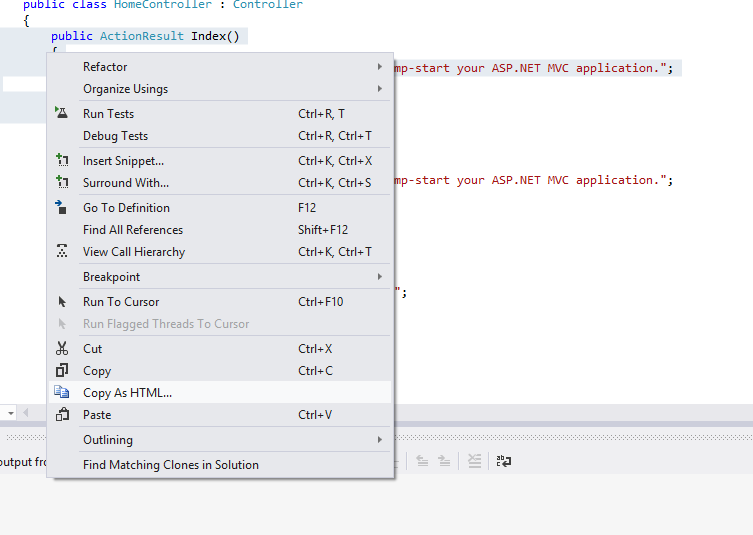
3. Select the code which you want copy as HTML, right click and select "Copy As HTML"

Screenshots:


4. Go the blogger/any other blogging site, paste that code in HTML.

Screenshot:


Formatted Code:


        public ActionResult Index()
        {
            ViewBag.Message = "Modify this template to jump-start your ASP.NET MVC application.";
 
            return View();
        }


Friday, February 22, 2013

Bundling and Compressing / Minifying Javascript and CSS files using Powershell Script


In ASP.Net MVC4, bundling and minification process for JS and CSS files is very simple. But in older version of project or open source project, you have to manually bundle and minify the Javascript and CSS files.
Here I am going to explain on how to do the above process using powershell script and Yahoo UI Compressor JAR file.

Why we need to BUNDLE the JS or CSS files?
If you are having multiple JS files in your project, multiple request sent to server to retrieve the files. If you have bundled the relative JS files into a single one, only one request sent to the server to retrieve the file.

Why we need to MINIFY the JS or CSS files?
Even if you have implemented the bundling of JS files, file size will be large and loading time will increase. If you have minified (removing unwanted space, lines and others) the JS files, file size reduced to small and less time take to load the JS file in browser.

And also, if you are using YSLOW for performance analysis, it will suggest you to do the bundling and minification.

Follow below steps to experiment the bundling and minification

1. Create two JS files (CustomerJS1.js, CustomJS2.js).

CustomJS1.js:


   1:  function showAlert1()
   2:  {
   3:      alert("testing combining and compression");
   4:  }

CustomJS2.js:
 
   1:  function showAlert2()
   2:  {
   3:      alert("testing combining and compression");
   4:  }


2. Make sure following software's installed in your system.

    a) Powershell
    b) Java JDK 7
    c) Download Yahoo UI Compressor JAR file


3. Use the below powershell script to create a bundled and minified file. please see the comments for each command of powershell to understand more on powershell script.

   1:   
   2:  #defining version
   3:  $version = "1.0";
   4:   
   5:  #creating new file. "-force" replaces new file if file already exists
   6:  New-Item "CustomJS-$version.js" -type file -force
   7:  New-Item "CustomJS-$version.min.js" -type file -force
   8:   
   9:  # Getting content from multiple custom JS files and put into a single version file.
  10:  # if your custom JS files and output files located in same directory, you have to exclude the output files. Otherwise you get access denied error.
  11:  Get-Content "Custom*.js" -Exclude "CustomJS-$version.js", "CustomJS-$version.min.js" | Add-Content "CustomJS-$version.js"
  12:   
  13:  #compressing JS files using Yahoo UI Compressor JAR file
  14:  java -jar yuicompressor-2.4.8pre.jar "CustomJS-$version.js" -o "CustomJS-$version.min.js"


4. After executing the above script in powershell, you can see the output of  bundled and minified files. Make sure YUI JAR file located in relative path while executing the powershell script.

CustomJS-1.0.js:

   1:  function showAlert1()
   2:  {
   3:      alert("testing combining and compression");
   4:  }
   5:  function showAlert2()
   6:  {
   7:      alert("testing combining and compression");
   8:  }


CustomJS-1.0.min.js:

   1:  function showAlert1(){alert("testing combining and compression")}function showAlert2(){alert("testing combining and compression")};


Powershell script for Bundling and Minification of CSS files :

   1:  #defining version
   2:  $version = "1.0";
   3:   
   4:  #creating new file. "-force" replaces new file if file already exists
   5:  New-Item "CustomCSS-$version.css" -type file -force
   6:  New-Item "CustomCSS-$version.min.css" -type file -force
   7:   
   8:  # Getting content from multiple custom CSS files and put into a single version file.
   9:  # if your custom CSS files and output files located in same directory, you have to exclude the output files. Otherwise you get access denied error.
  10:  Get-Content "Custom*.css" -Exclude "CustomCSS-$version.css", "CustomCSS-$version.min.css" | Add-Content "CustomCSS-$version.css"
  11:   
  12:  #compressing CSS files using Yahoo UI Compressor JAR file
  13:  java -jar ..\JAR\yuicompressor-2.4.8pre.jar "CustomCSS-$version.css" -o "CustomCSS-$version.min.css"


Tuesday, February 19, 2013

Windows Phone 8 - Application Life Cycle

Today, I am going to explain the application life cycle of Windows Phone 8 application. Like ASP.Net Application life cycle, Windows Phone 8 (WP8) also having application life cycle. It's more or else similar to Android Application life cycle.

Application Life Cycle Flow:

Windows Phone 8 Application Life Cycle


I have explained clearly in the above flow chart on WP8 Application Life Cycle. All the application events will occur in App.xaml file.

Not Running / Idle State:
After installing or closing the application, application is in not running state.

Launching Event and Running State:
When the user open the application, application launching event occurs and application reaches to Running State. 

Deactivating Event and Dormant State:
When user receives the phone call/ opened any other application, deactivating event will occur and reaches to Dormant State. In this state, user won't lose any unsaved date (if user entered something in text box, text will be there when the application backs to running state)

Dormant State and Activating Event:
When user the finishes the phone call or close the previously opened application, application activating event will occur from dormant state. In this case, user can see the entered data.

Tombstone State and Activating Event:
When user opening the multiple application which reaches the max. limit of 6 and opening the 7th application,  1st opened application will move to tombstone state which release all the memory used by 1st application and lose unsaved data. 
When user pressing back key continuously 6 times when they are in 7th application, application activating event  of 1st application will occur and move to Running state from tombstone state.

Closing Event and Not Running State:
When user closes the application, closing event will occur and application moves to Not running state.

As a best practice, user has to save the data while application deactivating event occurs itself if they don't want to lose any data. And also, if user wants to load application wide data, it should be done in Application Launch event.

Saturday, February 16, 2013

Window Phone 8 App - Navigation

Today, I am going to explain how to do the navigation between pages and passing data between pages in Windows Phone 8 App. Before getting into application, please install following software's.

1. Visual Studio 2012
2. Windows Phone 8 SDK

Once you have installed the above software's, create the new project of Windows Phone 8 App from the project templates.

Navigation:
         To navigate from one page to another page(XAML), you have to use navigation service. See below code to navigate to Page1.xaml. If your file located in relative path, use Urikind as Relative.

     private void HyperlinkButton_Click_1(object sender, RoutedEventArgs e)  
     {  
       NavigationService.Navigate(new Uri("/Page1.xaml", UriKind.Relative));  
     }  


Go Back:

     To navigate to previous page, you have to use GoBack() method in navigation service.


     private void HyperlinkButton_Click_1(object sender, RoutedEventArgs e)  
     {  
       NavigationService.GoBack();  
     }  


Passing Data between Pages:
         To pass data between pages either you can use QueryString method or Application class. Here I am explaining QueryString method.

Source (Passing as QueryString):
      

     private void Button_Click_1(object sender, RoutedEventArgs e)  
     {  
       NavigationService.Navigate(new Uri("/Page1.xaml?name=" + txtName.Text, UriKind.Relative));  
     }  


Destination (Override the OnNavigatedTo method in PhoneApplicationPage Class):

      protected override void OnNavigatedTo(NavigationEventArgs e)  
     {  
            base.OnNavigatedTo(e);  
        string name = string.Empty;  
        if (NavigationContext.QueryString.TryGetValue("name", out name))  
          txtBox1.Text = name;  
     }  


Screenshots:


Friday, January 25, 2013

Viswaroopam Movie Review -- A Kamal Haasan Film

Since Viswaropam is not released today (25th Jan, 2013) at Tamil Nadu, Pondicherry due to security reasons. Most of the people want to know about the film on how good it is.

Please click the below link to view movie review.

http://www.apherald.com/Movies/Reviews/12541/Viswaroopam-Telugu-Movie-Review,-Rating---A-Kamal-Haasan-Film

Saturday, December 29, 2012

Best practices to reduce memory leak in jQuery/Javascript


1. if you want to remove HTML DOM elements,  follow the below  steps to release memory claimed by DOM elements.

a) $("#content").off();   // unbind all the events of that control.
b) $("#content").empty(); or   $("#content").html("");  // -- Remove the child elements before removing the element itself.
c) $("#content").remove();  // -- remove the element itself.

2. Before removing the element, please follow the above three steps for each child element from lower level to higher level.

3. if you have used any variable to store the values, follow below steps to release memory claimed by variable.

delete x;  // x is variable
x = null;

4. if your plugin has functions or properties, please set it to null.

[object].sortable = null;

Thursday, December 06, 2012

Solution: Replacing jQuery attr onclick event not working in IE (Internet Explorer) Browser


Before IE 9, if you are replacing HTML element onclick attribute using jquery, the event won't fire. See below HTML and jQuery to replace the onclick attribute of anchor tag.

HTML:

   <div>  
     <a id="atest" style="cursor:pointer" onclick="showAlert1();"> Click to fire an event</a>  
   </div>  


jQuery:


  <script type="text/javascript">  
     $(function () {  
       $("#atest").attr("onclick", "showAlert1();showAlert2();");  
     });  
     function showAlert1()  
     {  
       alert("Alert 1");  
     }  
     function showAlert2() {  
       alert("Alert 2");  
     }  
   </script>  

Above jQuery, replacing the onclick attribute to show the two alert instead of single alert. This code won't work in IE 7/8 browser. To fix this, you can bind a custom click event using click method in jQuery.


  <script type="text/javascript">  
     $(function () {  
       $("#atest").click(function () { showAlert1(); showAlert2(); });  
     });  
     function showAlert1()  
     {  
       alert("Alert 1");  
     }  
     function showAlert2() {  
       alert("Alert 2");  
     }  
   </script>  

In some cases, you may have to replace the onclick attribute with your own custom attribute based on some logical situation. In that case,it's not easy to bind click event dynamically. Here is the magic to replace the entire anchor element with custom attribute anchor element.

  <script type="text/javascript">  
     $(function () {  
       var onc = $("#atest").attr("onclick");  
       var elemHTML = $("#atest").parent().html();  
       var finalElement = elemHTML.replace(onc, onc + "showAlert2();");  
       $("#atest").parent().html(finalElement);  
     });  
     function showAlert1()  
     {  
       alert("Alert 1");  
     }  
     function showAlert2() {  
       alert("Alert 2");  
     }  
   </script>  

Saturday, November 17, 2012

How to create user defined Server Role to manage permissions easily in SQL Server 2012

Until SQL 2008 R2, you don't have option to create user defined server role. In SQL Server 2012, you can create a server role with permissions. It would help easily to manage the login with limited permissions. 


For example, in your company, there are  two teams to manage the front end and back end. Back end team should able to create obejcts and manage database. Front end team should have only access to read and write the records and not allow to create/alter sql objects. To achieve this, you can do either by create login with permissions or by means of server role. It would be easy for you to manage the login with server role with permission set.

Follow the below step on how to create a server role, permissions and logins.

Step1: Create a Server Role.


Step 2: Assigning permissions to server role.


Step 3: After server role created.


Step 4: Create Login with assigning newly created user defined server role.


Sunday, November 04, 2012

How to open Google Map with locating address in Android

In this post, I am going to explain how google map with locating address in Android. Just three lines of code is enough to make this happen. Before run the application, make sure that you have selected Google Map API in AVD Manager configuration.


 String address = "Jawaharlal Nehru Rd Kasi Estate Jafferkhanpet Chennai Tamil Nadu";   
 Intent intent = new Intent(Intent.ACTION_VIEW, Uri.parse("geo:0,0?q=" + address));  
 context.startActivity(intent);  


 Here is the complete code.

Layout File:


 <RelativeLayout xmlns:android="http://schemas.android.com/apk/res/android"  
   xmlns:tools="http://schemas.android.com/tools"  
   android:layout_width="match_parent"  
   android:layout_height="match_parent" >  
   <Button  
     android:id="@+id/btnGoogleMap"  
     android:layout_width="wrap_content"  
     android:layout_height="wrap_content"  
     android:layout_centerHorizontal="true"  
     android:layout_marginTop="30dp"  
     android:text="Google Map" />  
 </RelativeLayout>  


Activity Class:


 import android.net.Uri;  
 import android.os.Bundle;  
 import android.app.Activity;  
 import android.content.Context;  
 import android.content.Intent;  
 import android.view.Menu;  
 import android.view.View;  
 import android.view.View.OnClickListener;  
 import android.widget.Button;  
 public class GoogleMapActivity extends Activity {  
      final Context context = this;  
      Button btnGoogleMap;  
   @Override  
   public void onCreate(Bundle savedInstanceState) {  
     super.onCreate(savedInstanceState);  
     setContentView(R.layout.google_map);  
     btnGoogleMap.setOnClickListener(new OnClickListener() {  
             public void onClick(View v) {  
                  String address = "Jawaharlal Nehru Rd Kasi Estate Jafferkhanpet Chennai Tamil Nadu";   
                  Intent intent = new Intent(Intent.ACTION_VIEW, Uri.parse("geo:0,0?q=" + address));  
                  context.startActivity(intent);  
              }  
             }  
        );  
   }  
   @Override  
   public boolean onCreateOptionsMenu(Menu menu) {  
     getMenuInflater().inflate(R.menu.google_map, menu);  
     return true;  
   }  
 }  


Manifest File:


 <manifest xmlns:android="http://schemas.android.com/apk/res/android"  
   package="com.ayyanar.helloworld"  
   android:versionCode="1"  
   android:versionName="1.0" >  
   <uses-sdk  
     android:minSdkVersion="8"  
     android:targetSdkVersion="15" />  
   <uses-permission android:name="android.permission.INTERNET" />  
   <application  
     android:icon="@drawable/ic_launcher"  
     android:label="@string/app_name"  
     android:theme="@style/AppTheme" >  
      <activity  
       android:name=".GoogleMapActivity"  
       android:label="@string/title_activity_google_map" >  
       <intent-filter>  
         <action android:name="android.intent.action.MAIN" />  
         <category android:name="android.intent.category.LAUNCHER" />  
       </intent-filter>  
     </activity>  
   </application>  
 </manifest>  


Screenshots:


How to load web site in native Android application using WebView control

In this post, I am going to explain how to load website in native android web application using webview control. Just three lines of code is enough to make it happen.

Just use the below code to load the website either during oncreate event or button click event.

 webView = (WebView) findViewById(R.id.webView1);  
 webView.getSettings().setJavaScriptEnabled(true);  
 webView.loadUrl("http://ayyanar.blogspot.com");  


And also, you have to set INTERNET PERMISSION in manifest file like below.

  <uses-permission android:name="android.permission.INTERNET" />  


Here is the complete code to do this.

Layout File:

 <RelativeLayout xmlns:android="http://schemas.android.com/apk/res/android"  
   xmlns:tools="http://schemas.android.com/tools"  
   android:layout_width="match_parent"  
   android:layout_height="match_parent" >  
   <TextView  
     android:id="@+id/textView1"  
     android:layout_width="wrap_content"  
     android:layout_height="wrap_content"  
     android:layout_centerHorizontal="true"  
     android:layout_centerVertical="true"  
     android:padding="@dimen/padding_medium"  
     android:text="@string/hello_world"  
     tools:context=".WebViewActivity" />  
   <WebView  
     android:id="@+id/webView1"  
     android:layout_width="match_parent"  
     android:layout_height="match_parent"  
     android:layout_alignParentBottom="true"  
     android:layout_alignParentRight="true" />  
 </RelativeLayout>  


Activity Class:

 
 import android.os.Bundle;  
 import android.app.Activity;  
 import android.view.Menu;  
 import android.webkit.WebView;  
 public class WebViewActivity extends Activity {  
      WebView webView;  
   @Override  
   public void onCreate(Bundle savedInstanceState) {  
     super.onCreate(savedInstanceState);  
     setContentView(R.layout.web_view);  
     webView = (WebView) findViewById(R.id.webView1);  
           webView.getSettings().setJavaScriptEnabled(true);  
           webView.loadUrl("http://ayyanar.blogspot.com");  
   }  
   @Override  
   public boolean onCreateOptionsMenu(Menu menu) {  
     getMenuInflater().inflate(R.menu.web_view, menu);  
     return true;  
   }  
 }  


Manifest File:

 <manifest xmlns:android="http://schemas.android.com/apk/res/android"  
   package="com.ayyanar.helloworld"  
   android:versionCode="1"  
   android:versionName="1.0" >  
   <uses-sdk  
     android:minSdkVersion="8"  
     android:targetSdkVersion="15" />  
   <uses-permission android:name="android.permission.INTERNET" />  
   <application  
     android:icon="@drawable/ic_launcher"  
     android:label="@string/app_name"  
     android:theme="@style/AppTheme" >  
     <activity  
       android:name=".WebViewActivity"  
       android:label="@string/title_activity_web_view" >  
       <intent-filter>  
         <action android:name="android.intent.action.MAIN" />  
         <category android:name="android.intent.category.LAUNCHER" />  
       </intent-filter>  
     </activity>  
   </application>  
 </manifest>  


 Screenshot: